AMD Ryzen Master Application
The use of the AMD Ryzen Master Application requires that the user accepts the End User License Agreement and inherent risks of configuring the AMD processor to performance levels that exceed specifications and stock settings.
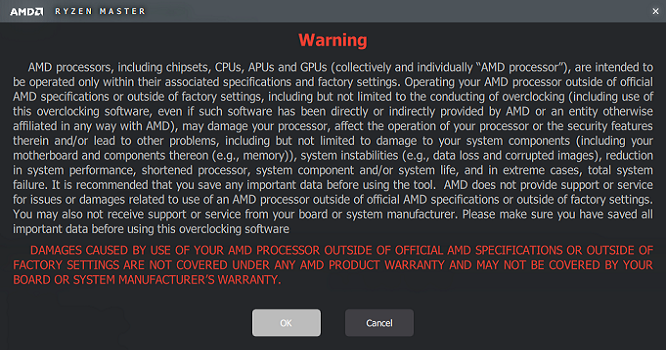
Figure 3.1: AMD Ryzen Master Warning and Warranty Disclaimer Message.
Key capabilities
Clock monitoring: Per-core CPU clock monitoring via Histogram (including current, average and peak clock readings) Temperature monitoring: CPU temperature monitoring via Histogram. CPU core peak speed: Instantaneous highest speed reported within all enabled cores. CPU core clock adjustment: CPU speed spinbox or CPU speed sliders. CPU Core disabling: Select 0, 2, 4 or 6 cores to park, or disable as per processor core count. CPU core voltage adjustment: CPU Voltage and VDDCR_SOC spinboxes. Memory voltage adjustment: Memory VDDIO and VTT spinboxes. Memory clock adjustment: Memory clock slider. Memory timing adjustment: Memory Control drop down menus. Profiles support: Up to four (4) different profiles of configuration settings can be created, tested and saved for use.
User Interface & Functionality
Histogram
The AMD Ryzen Master application features a Histogram for monitoring CPU core clock speeds for each core present and CPU temperature. By default both the CPU core clock speeds and the temperature Histogram are displayed,you can disable any histogram by unchecking it. The histogram offers Zoom in and Zoom out features. The side bar displays the current average and peak values for CPU core clock speeds.
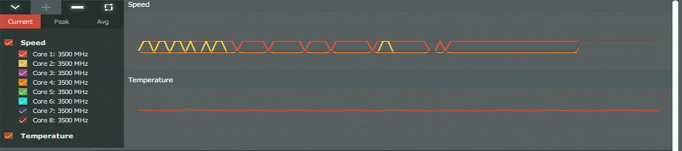
Figure 3.2: AMD Ryzen Master User Interface - Histogram
Cores
The AMD Ryzen Master Application details the number of cores available in this part of the user interface and also allows the user to disable a selected number of CPU cores in pairs.
This interface offers the user options to vary other parameters such as speed,frequency by use of a spinbox or manually editing the values. Depending on the range of frequency values chosen, the application calculates a valid nearest minimum frequency and displays the same. In case the user enters/selects any value below or above valid values, the value will jump back to the nearest valid value as soon as the focus is shifted from the speed spin-box.
In addition to the above enlisted attributes, the user interface window also offers a sidetab that exhibits the current temperature as well as the Peak speed reached among all enabled cores in that session.
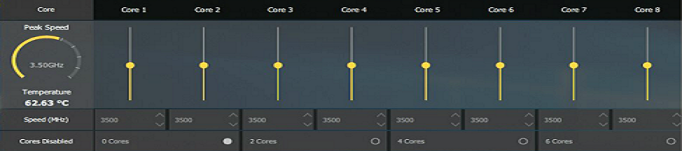
Figure 3.3: AMD Ryzen Master User Interface - Cores
Voltage
The user interface is separated with options to alter the below parameters :
- CPU Voltage
- MEM VDDIO
- MEM VTT
- VDDCR SOC
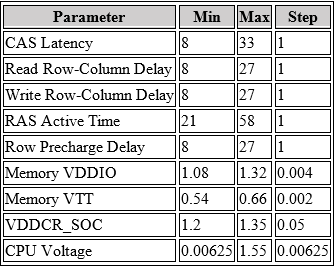
Adjustments in value for each parameter is possible either using the spinbox or by manually editing. Hovering the mouse pointer over these fields will disclose Minimum , Maximum as well as the Step Size values supported for those fields. There exists a nearest step size point optimization for all inputs which ensures precision.

Figure 3.4: AMD Ryzen Master User Interface - Voltage
Memory
The AMD Ryzen Master application offers an easy-to-use graphical user interface for adjusting the memory parameters such as :
- CAS Latency
- Row Precharge Delay
- RAS Active Time
- Read Row-Column Delay
- Write Row-Column Delay

Figure 3.5: AMD Ryzen Master UI - Memory
Profiles
The ideology of Profiling in AMD Ryzen Master gives the user a convenient way to toggle and work with a range of versatile configuration settings. It enables the user to be informed by displaying a “Current View” of the system in the “C” tab on every launch. This view is typically read-only and doesn’t provide a window for change. Users can benefit from using Profiles as they can configure up to four unique combinations of enabled cores, frequencies, and memory configurations optimized for different applications classes.
Current View Profile
- If AMD Ryzen Master has been deployed newly and none of the profiles are applied, “C” profile reflects the current system status.
- If any of the profiles are already applied, “C” will reflect the values of that profile.
- Ideally both “C” and the applied profile will be the same , until the user updates and saves that profile.
- Selected profile will be highlighted with “Light Grey” color.
- “Apply” and “Discard” buttons will be available for all profiles except “C”.
- By default, when AMD Ryzen Master is launched, it will be open in the “C” profile.
Custom Profiles
When AMD Ryzen Master application is launched for first time, all profiles will be saved with current system values at that point of time
To initiate any parameter changes, the first step is to activate any of the user-editable Profiles by clicking “1 to 4” tabs at the lower left corner.
The optimal settings for a profile can be saved by clicking the “Save Profile” button (at bottom right corner) for future reference but cannot be put to use until applied.
In order to apply a saved profile to system operation,launch the AMD Ryzen Master application , browse to the desired profile and click on “Apply” at the top right hand corner.
- If the changes made in a profile needs to be abandoned, the user can use the “Discard” button placed in proximity to “Apply”.
- Upon clicking the “Discard” option, all changed values corresponding to the selected profile will be reverted to that of the last saved configuration of that profile.
- Additionally, the tool also offers a provision to revert back to the initial state ie, the state at the time of the first launch AMD Ryzen Master.
- Upon clicking the “Reset Profile” (at bottom right corner), the values in the selected profile will be overwritten with the initial values which are obtained at first launch of AMD Ryzen Master.
Custom profiles will always reflect the previous saved settings.
Below table summarizes the prescribed range of values for above listed components
Note
Parameters that requires restart inorder for any changes to get implemented.
- Core Disabling
- Memory Clock
- CAS Latency
- Row Precharge Delay
- RAS Active Time
- Read Row-Column Delay
- Write Row-Column Delay